💡 Before You Start (Optional)
If you haven’t purchased a domain yet, you can use Hostinger. They often provide affordable pricing, and you can get up to 20% discount using this referral link:
https://www.hostinger.com/id?REFERRALCODE=SESMIQBALAZH
🚀 Step 1: Add Your Domain in Vercel
- Go to your Vercel dashboard
- Navigate to Settings → Domains
- Click Add Existing Domain
- Enter your domain name and click Save
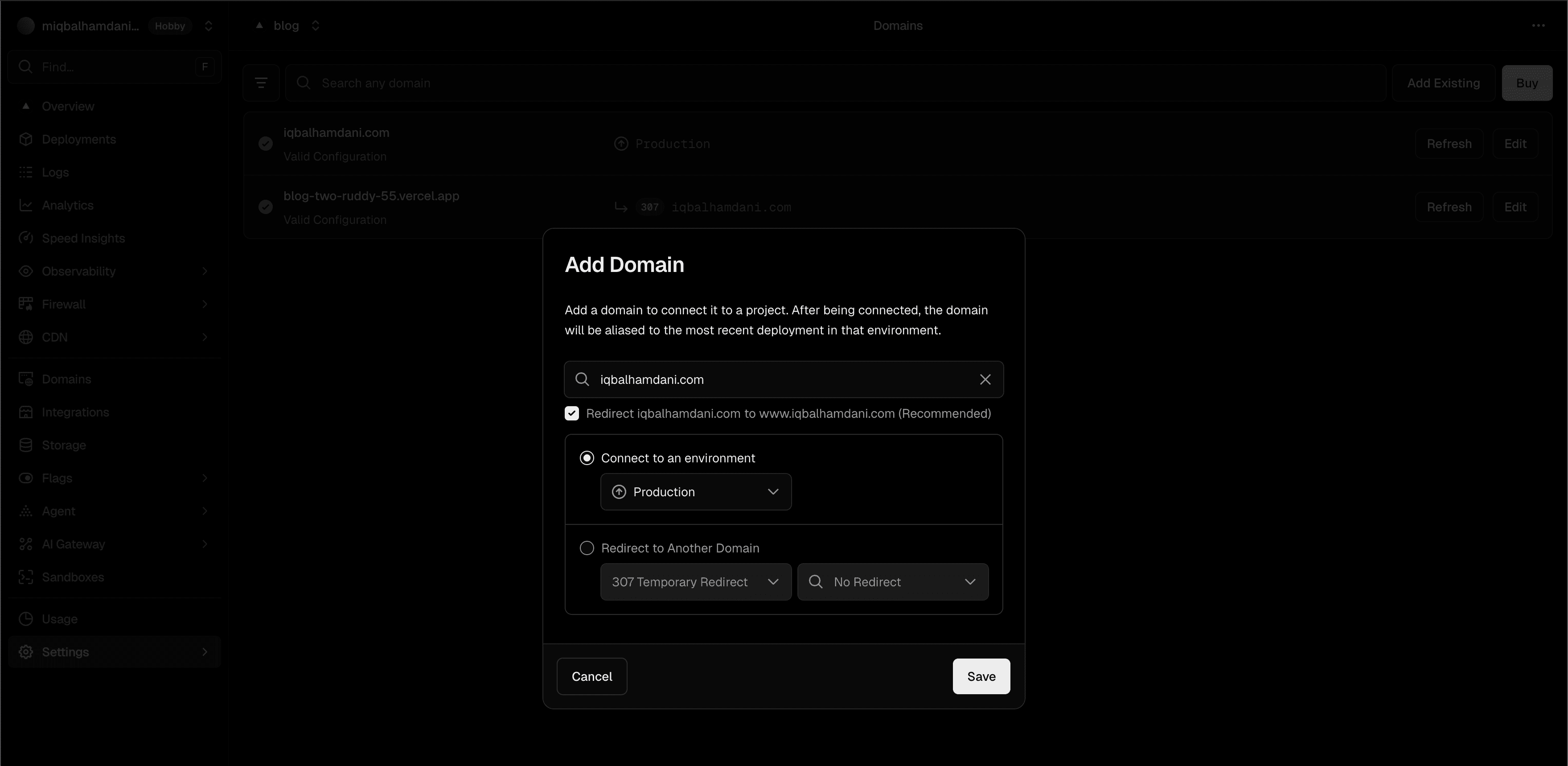
After adding the domain, you’ll see a warning message: “Invalid Configuration”. Click Learn More, and Vercel will show you two nameservers.
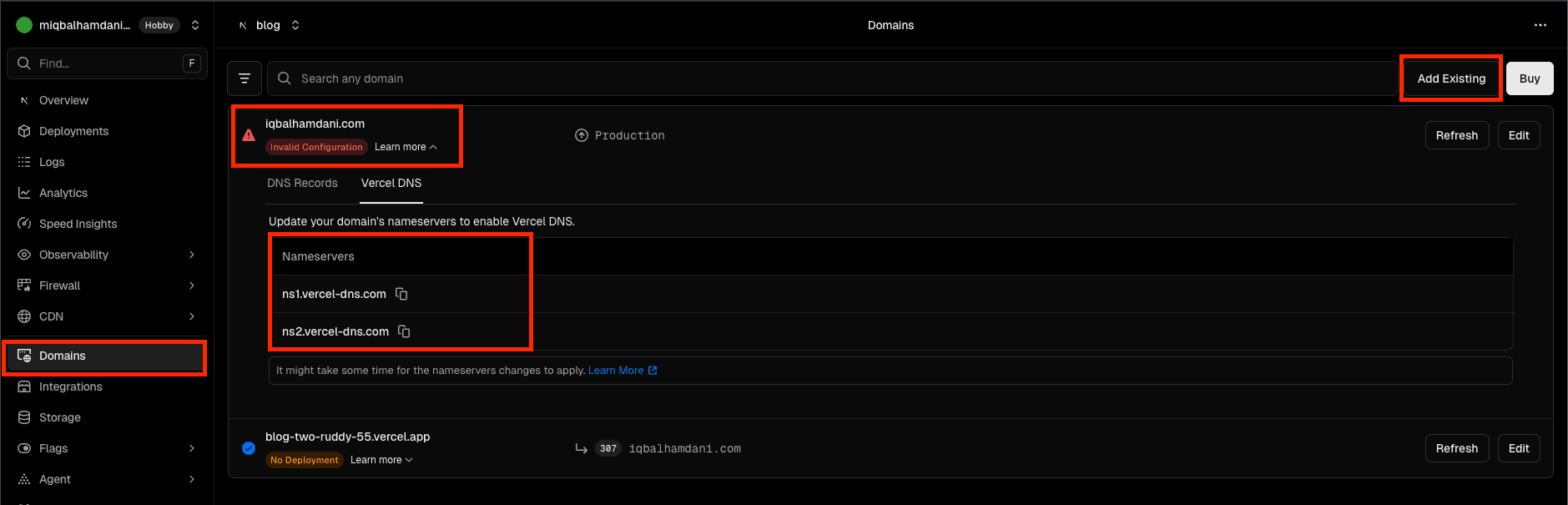
Copy these nameservers — you’ll need them in the next step.
🌐 Step 2: Update Nameservers in Hostinger
- Log in to your Hostinger account
- Go to Domains → Domain Portfolio → Manage
- Open the DNS / Nameservers settings
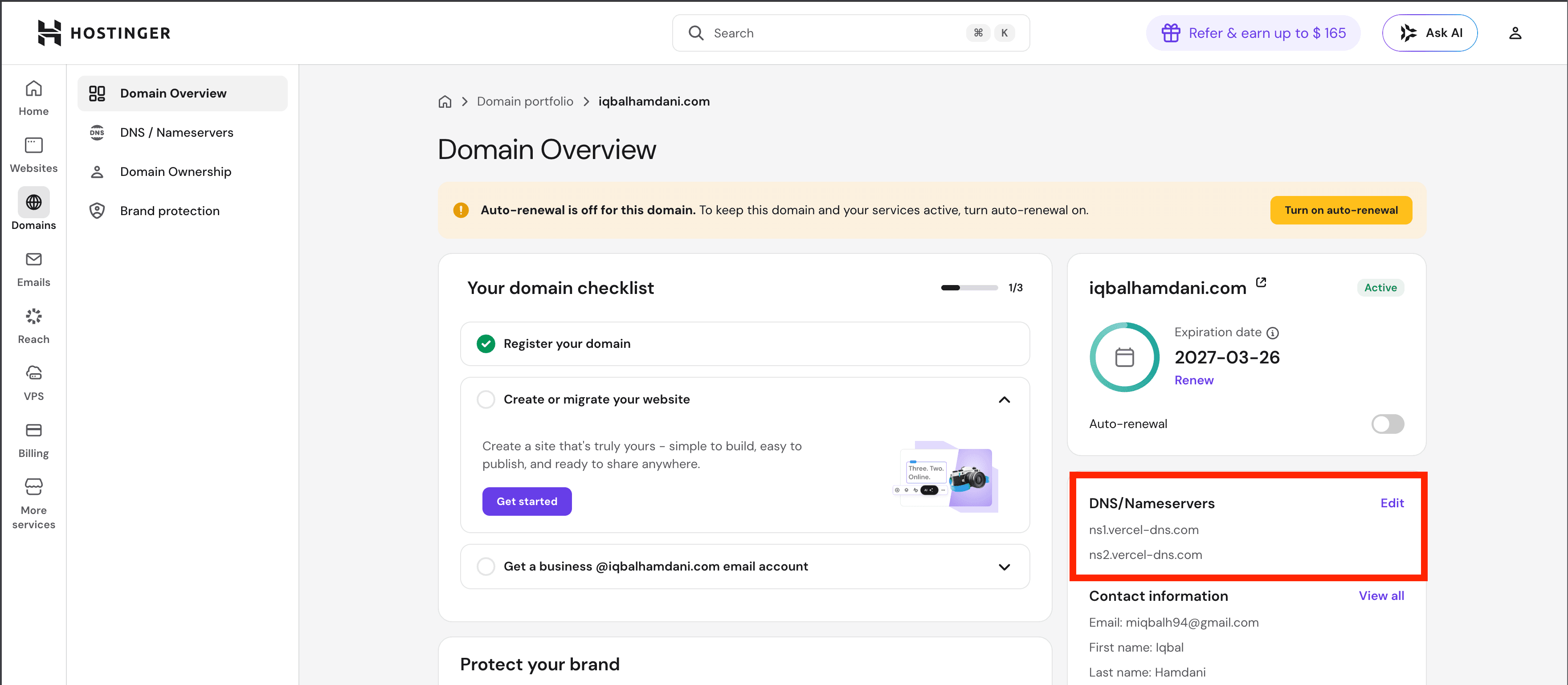
⚠️ Important Notes:
- You may need to verify your email before editing DNS settings
- If you don’t receive the OTP email, check your spam folder
🔧 Step 3: Change Nameservers
Replace your current nameservers with Vercel’s and Save the changes.
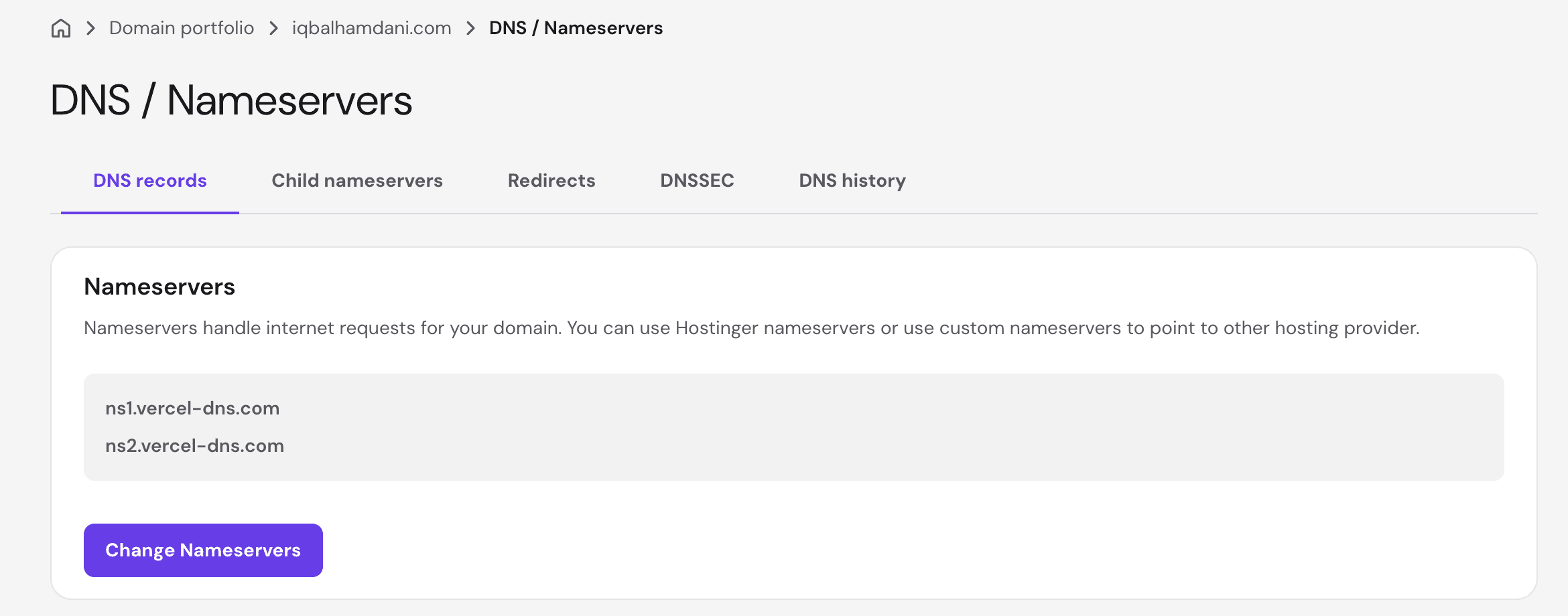
ns1.vercel-dns.com
ns2.vercel-dns.com
✅ Step 4: Verify the Setup
- Go back to Vercel
- Click Refresh on the domain status

Once propagation is complete, the status will change to Valid Configuration, and your domain will be connected 🎉.
⏱️ DNS Propagation Time
DNS changes may take a few minutes up to 24 hours, but in most cases, it updates pretty quickly.